Practical answer
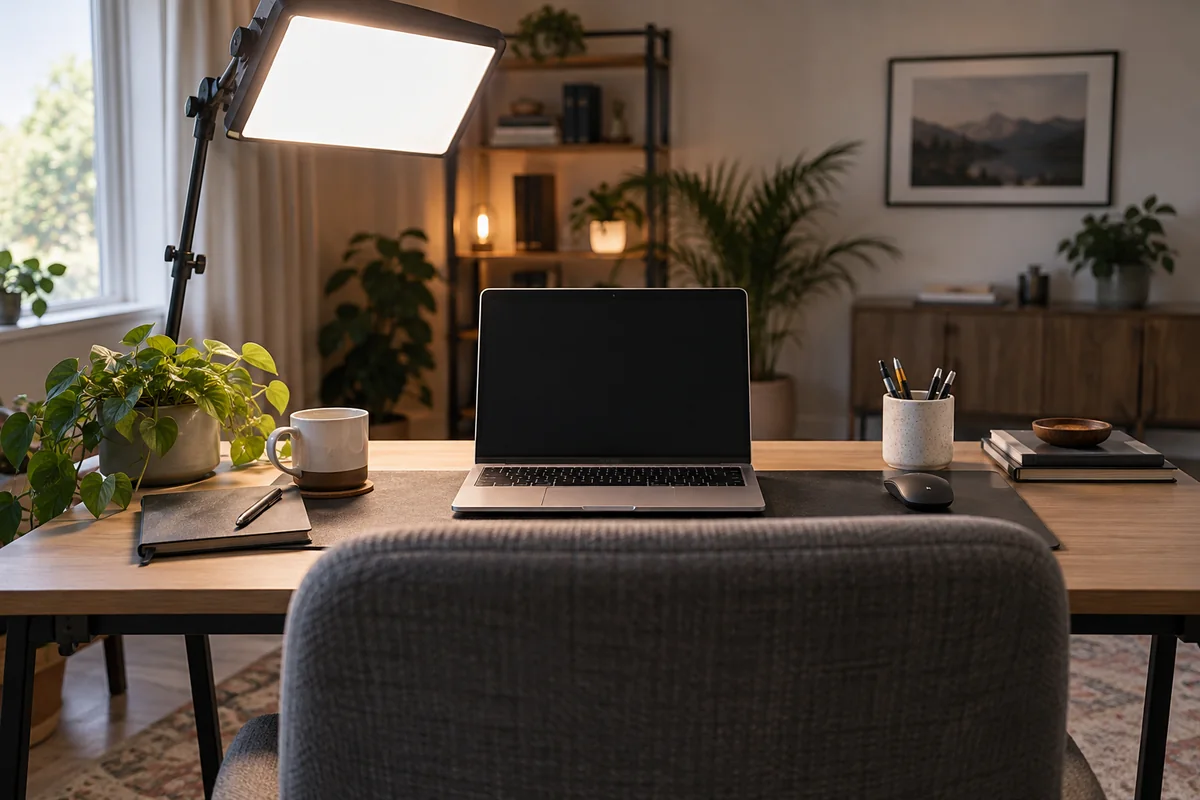
Improve a video call in this order: set the camera near eye level, control a bright window, place a broad light in front and slightly to one side, then simplify the actual camera crop. A new background is rarely the first fix.
The background should support separation from the speaker without becoming a display shelf. Preview the exact crop in the meeting application because the camera sees less context and more edge clutter than the room does.
- Preview the real camera crop
- Light the face from the front
- Avoid strong backlighting
- Simplify the background before adding decoration
Set up the call in a repeatable order
- Place the camera close to eye level and frame the head and shoulders before adjusting the room.
- Close, diffuse or move away from a bright window behind the speaker.
- Place a broad light in front and slightly to one side, high enough to avoid dramatic under-lighting.
- Balance the background so it is visible but not brighter or busier than the face.
- Open the meeting preview, inspect every edge, and check again at the time of day the call occurs.
Build the background from the camera view
| Problem in preview | Physical fix | Software fallback |
|---|---|---|
| Bright window behind the head | Rotate the setup or control the window | Use exposure controls only after reducing backlight |
| Household traffic crosses the frame | Change camera angle or create distance | Use a supported blur or virtual background |
| Shelf objects compete with the speaker | Remove or group objects into one quiet area | Crop more tightly if image quality remains acceptable |
| Face blends into the wall | Add distance and modest background light | Avoid extreme artificial replacement edges when possible |
Five checks before an important call
- Camera lens is clean and the application is using the intended camera.
- Face light is in front, while windows and bare lamps are outside the background crop.
- The brightest object in the image is not an uncontrolled window.
- Personal information, mirrors and moving household areas are outside the frame.
- A blur or virtual background has been previewed for edge artifacts before relying on it.
Check glasses, time of day and audio together
For glasses reflections, raise or move the light farther to the side while keeping the face evenly readable. Reducing screen brightness may help, but do not make work content unreadable merely to improve the camera image.
Preview at the hour the call normally happens because window direction and background brightness change. Then listen to a short recording: a visually clean wall can still be a reflective audio surface, and moving closer to the microphone may improve the call more than another light.
- Lock in a repeatable evening position if daylight changes the result.
- Keep strongly different light colors from competing across the face.
- Move noisy chargers, fans and laptop exhaust away from the microphone when practical.
- Treat face, background and audio as one call setup rather than separate decoration projects.
Questions people ask
Should the light be behind the monitor?
A soft source just behind or beside the monitor can place light near the camera axis, but it must not reflect in glasses or the display. Preview the result rather than following one exact position.
Is a virtual background better than a real background?
It is useful for privacy or unavoidable movement, but segmentation can look unstable around hair, hands and chairs. A simple real crop plus blur is often less distracting.
How far should I sit from the background?
Enough to create visual separation and keep the background from appearing sharply dominant, while preserving chair and room circulation. The useful distance depends on the camera field of view and room.
Sources and methodology
These sources support the setup logic and boundaries above. Check product-specific instructions before making a purchase or changing electrical equipment.
- Tips for presenting in large meetings and events in Microsoft Teams — Microsoft Support ↗Official front-lighting, backlight and uncluttered-background recommendations.
- Use video in Microsoft Teams — Microsoft Support ↗Official video preview and background-effect controls.
- Workstation Environment — U.S. Occupational Safety and Health Administration ↗Window, glare and task-light placement guidance.