Practical answer
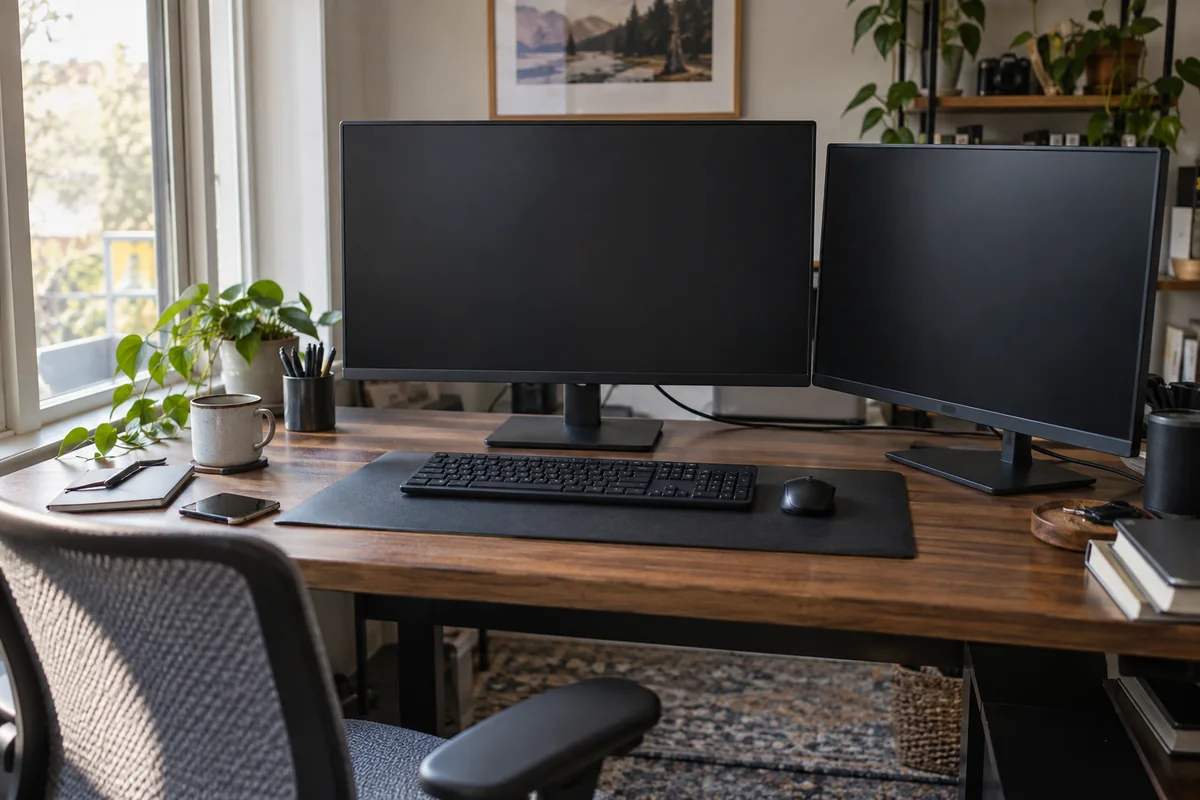
Arrange two monitors by task share. If one display carries most of the work, center it on the body and angle the secondary display beside it. If use is genuinely equal, center the seam and bring both panels into a shallow arc.
Physical layout is only half the setup. The computer, dock, cables and operating system must support the chosen resolution, refresh rate and display count at the same time.
- Let primary-use percentage decide alignment
- Keep viewing distances similar
- Match the digital layout to the physical layout
- Verify dock and host display limits before buying cables
Choose the layout from the work pattern
| Work pattern | Physical layout | Good fit |
|---|---|---|
| Primary screen 70–90% of the time | Primary centered; secondary immediately beside it and angled inward | Writing, coding, design or analysis with chat/reference on the side |
| Use split close to 50/50 | Center the seam; angle both screens into a shallow arc | Side-by-side documents, comparison, dispatch or monitoring |
| Laptop is secondary | Raise it beside the main monitor; use external keyboard and mouse | Calls, messaging or reference while the external display carries the main task |
| One portrait display | Keep the landscape primary centered; place portrait display close enough to avoid a large turn | Long documents, code, chat or dashboards |
Set the physical screens
- Place the chair, keyboard and primary task line first. Do not center the monitors on the desk if the seated body is offset.
- Set both screens to a similar eye-to-screen distance. Angle the outer edges inward rather than leaving two flat panels across a straight line.
- Align useful content areas, not necessarily mismatched plastic bezels. If screen sizes differ, preserve comfortable height on the primary display.
- Route power and video cables with enough slack for monitor-arm movement and sit-stand travel. Avoid hanging connector weight from laptop ports.
- Run a real task for twenty minutes. Count which display receives the most attention and recenter if repeated neck rotation appears.
Verify the connection path before purchasing a dock
- Confirm the computer supports the number of external displays required. This varies by model, port and operating mode.
- Confirm whether the dock uses native display output, Thunderbolt/USB4, DisplayPort MST, or a software display technology. These are not interchangeable.
- Record resolution and refresh rate for both monitors simultaneously, not one output in isolation.
- After connecting, use the operating system’s Identify function and drag the digital displays to match the physical left/right and vertical positions.
- If the pointer catches at an edge, align the digital rectangles more closely with the physical screen edges.
Questions people ask
Should the gap between two monitors be centered?
Only when both screens receive roughly equal use. If one is primary, placing the seam at the center forces repeated viewing to one side.
Should both monitors be the same height?
Similar active-area height and viewing distance make transitions easier, but a smaller secondary screen does not need cosmetic bezel alignment at the expense of the primary screen.
Why does the computer detect only one external monitor?
Possible causes include host display limits, an unsupported dock topology, cable or adapter capability, driver/OS settings, or a monitor input setting. Verify the computer and dock documentation before replacing random cables.
Sources and methodology
These sources support the setup logic and boundaries above. Check product-specific instructions before making a purchase or changing electrical equipment.
- Computer Workstations Evaluation Checklist — U.S. Occupational Safety and Health Administration ↗Monitor height, distance, and multiple-monitor placement checkpoints.
- Office Ergonomics — Positioning the Monitor — Canadian Centre for Occupational Health and Safety ↗Viewing angle, viewing distance, corrective-lens, wide-screen, and multiple-monitor guidance.
- How to use multiple monitors in Windows — Microsoft Support ↗Official detection, identification, arrangement, scaling, and extend/duplicate controls.
- Connect displays to your Mac — Apple Support ↗Model-dependent Mac display connection and support guidance.